

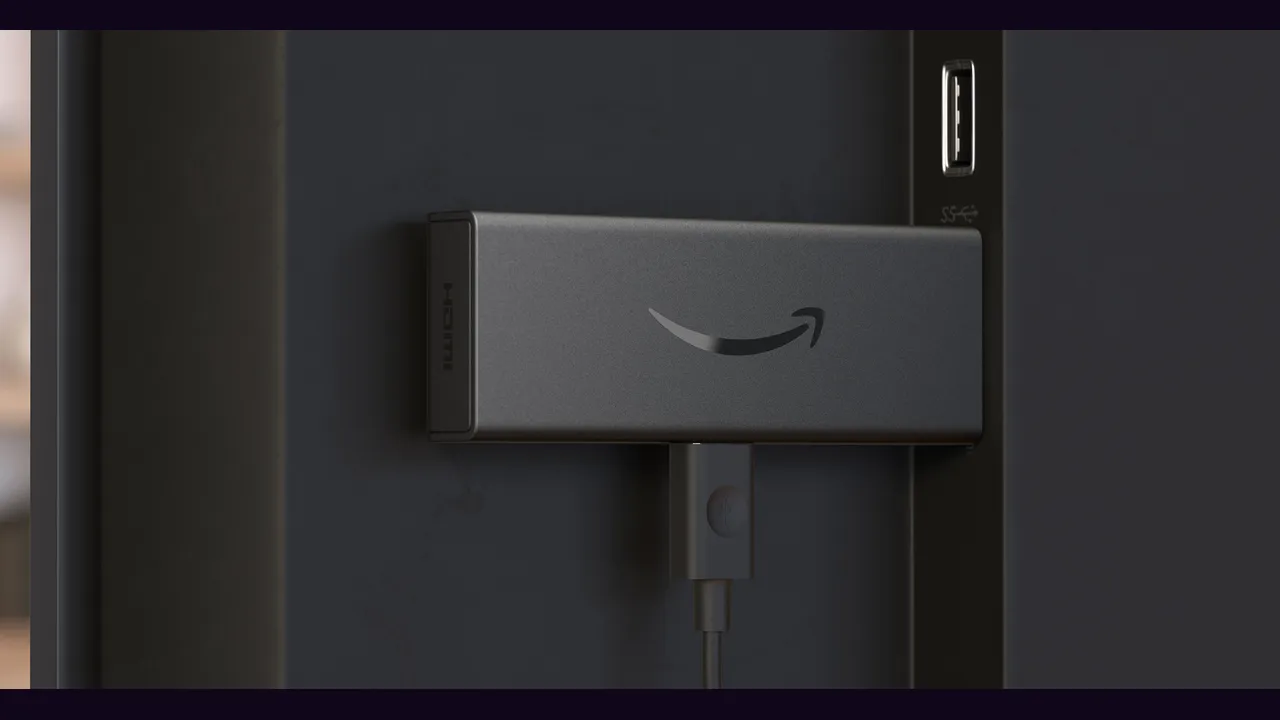
A Firestick is one of the easiest ways to watch the Eleph TV APK on a big screen, because the stick itself is an Android device with a television remote. The setup below takes a few minutes, and the only part that surprises people is the permission step, which Android asks for on purpose.
Prepare the Stick First
Plug the stick in, connect it to Wi-Fi, and check that it has enough free storage for a new app. A stick that is nearly full is the most common cause of a failed install, and it is also the easiest to fix: remove one app you no longer use and try again.
Sign in to the stick with your usual account first, so the home screen, the settings menu and the app list all behave normally before you add anything new.
Sideload Eleph TV on the Stick
Eleph TV is not in the stick app store, so it arrives as an Android file that you open and install, just like any other sideloaded app. Open the file, allow installation from the app that opened it when Android asks, and confirm the install. That permission is per app, not a blanket switch, so only the app you used gains it.
If the install stalls, check storage first, then check that the permission was actually granted. The two together explain almost every failed Firestick install we have seen.
Register and Test One Title
Open Eleph TV from the apps row, register from the Profile screen with an email address or a phone number, and enter the verification code you receive. Then play one short title and check playback, sound and picture quality before a full evening.
For the television side of the setup, the companion reading is Eleph TV on Android TV, and if playback stutters later, the buffering fix covers the cures in order.